
Automating Workspace Setup with a Simple Batch Script
Mornings often begin with the same routine: launching email clients, development environments, communication tools, and productivity applications. Each manual step costs a small amount of time, but those minutes compound significantly over weeks and months. Automating this process creates a consistent, repeatable workspace that initializes reliably at the start of each day.
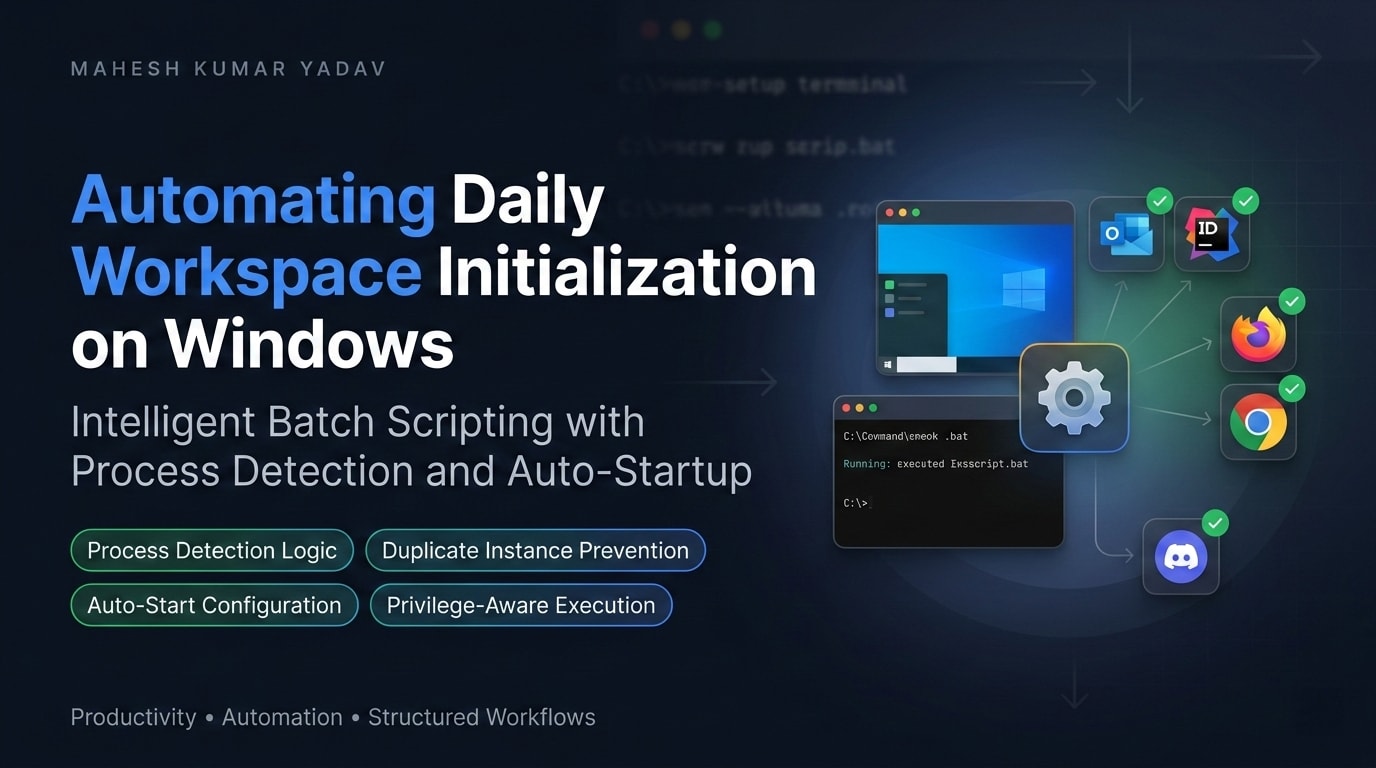
The Challenge: Repetitive Morning Setup
Most professional workflows depend on a familiar set of applications:
- Email clients (Outlook, Thunderbird)
- Development environments (Visual Studio, VS Code)
- Communication platforms (Slack, Teams)
- Browsers with predefined tabs
- Utility tools (screenshots, note-taking applications)
Manually opening these tools is both time-consuming and inconsistent. Important applications may be forgotten, and valuable time is often spent rearranging windows instead of starting meaningful work.
The Solution: Smarter Automation Through Batch Scripting
The following batch script is used daily to initialize a complete workspace with a single action. This enhanced version includes intelligent checks to avoid launching duplicate applications. Below is a condensed view of the core logic; the complete, well-documented script is available on our GitHub repository.
@echo off
echo =================================
echo    Launching Workspace Apps
echo =================================
echo.

echo 1. Checking Sticky Notes...
powershell -Command "if (Get-Process -Name 'Microsoft.Notes' -ErrorAction SilentlyContinue) { Write-Output '  Already running.' } else { Write-Output '  Starting...'; exit 1 }"
if %errorlevel% equ 1 start shell:appsFolder\Microsoft.MicrosoftStickyNotes_8wekyb3d8bbwe!App
ping -n 2 127.0.0.1 >nul

echo 2. Checking Outlook...
powershell -Command "if (Get-Process -Name 'OUTLOOK' -ErrorAction SilentlyContinue) { Write-Output '  Already running.' } else { Write-Output '  Starting...'; exit 1 }"
if %errorlevel% equ 1 start outlook
ping -n 2 127.0.0.1 >nul

REM ... (similar checks for Chrome tabs, Flameshot, Visual Studio) ...

echo.
echo =================================
echo     All applications launched!
echo =================================
exit
Get the full script with detailed comments and advanced features on GitHub: RegularWorkSpaceAutomation
How the Script Functions
The script is built from simple but powerful components, enhanced with intelligent process checking.
1. Application Launch Methods
Three primary launch methods are used:
Universal Windows Platform (UWP) applications
start shell:appsFolder\Microsoft.MicrosoftStickyNotes_8wekyb3d8bbwe!App
This syntax launches Microsoft Store applications. Application identifiers can be obtained by creating shortcuts from the Start Menu or using PowerShell’s Get-AppxPackage.
Built-in or PATH-registered applications
start outlook
Applications available in the system PATH can be launched directly by name.
Applications requiring full paths
start "" "C:\Program Files\Microsoft Visual Studio\18\Community\Common7\IDE\devenv.exe"
Applications not registered in the PATH require their full executable paths. The empty quotes ("") are essential when paths contain spaces.
2. Browser Launch with Specific URLs
start chrome --incognito "https://www.youtube.com/"
start chrome --new-window "https://tfs.tzunami.net/tfs/DefaultCollection/Deployer/_home"
Browsers can be launched with predefined URLs and options, such as:
--incognitofor private sessions--new-windowto separate contexts- Fixed URLs for dashboards, portals, or tools used daily
3. Intelligent Process Checking
The script’s most significant enhancement is checking whether applications are already running:
powershell -Command "if (Get-Process -Name 'OUTLOOK' -ErrorAction SilentlyContinue) { Write-Output '  Outlook is already running.' } else { Write-Output '  Starting Outlook...'; exit 1 }"
if %errorlevel% equ 1 (
    start outlook
)
This approach:
- Uses PowerShell’s
Get-Processcmdlet for reliable process detection - Provides clear feedback about what’s happening
- Only launches applications that aren’t already running
- Prevents duplicate instances and resource waste
4. Administrative Privilege Handling
For applications requiring elevated permissions, the script intelligently requests them only when needed:
if %errorlevel% equ 1 (
    powershell -Command "Start-Process -FilePath '$env:ProgramFiles\Microsoft Visual Studio\18\Community\Common7\IDE\devenv.exe' -Verb RunAs"
)
This launches Visual Studio with administrator privileges only when it’s not already running, preventing unnecessary elevation prompts.
5. Timing Control
ping -n 2 127.0.0.1 >nul
This approach introduces brief delays between launches. Pinging the localhost with -n 2 creates roughly a one-second pause, reducing system load and ensuring stable application startup.
6. Auto-Start Configuration
Several options exist for running the script automatically at login.
Method A: Startup Folder
C:\Users\[Username]\AppData\Roaming\Microsoft\Windows\Start Menu\Programs\Startup
Method B: Registry Entry
Windows Registry Editor Version 5.00
[HKEY_CURRENT_USER\Software\Microsoft\Windows\CurrentVersion\Run]
"WorkspaceLauncher"="C:\\Path\\To\\WorkspaceLauncher.bat"
Method C: Task Scheduler
- Trigger: At log on
- Action: Start a program (batch file)
- Condition: Run only when user is logged on
- Settings: Allow task to run on demand
Method D: Common Startup Folder (System-Wide)
C:\ProgramData\Microsoft\Windows\Start Menu\Programs\StartUp
Creating Custom Scripts
1. Identify Essential Applications
Begin by listing applications used daily, such as:
- Communication tools: Slack, Microsoft Teams, Discord
- Development tools: VS Code, Visual Studio, IntelliJ, Docker
- Productivity apps: Outlook, Notion, Todoist
- Browsers with specific profiles or tabs
- Utilities: Screenshot tools, note apps, password managers
2. Locate Application Paths
Windows Store applications
- Create a shortcut from the Start Menu
- Open Properties
- Copy the App ID from the target field
Alternatively, use PowerShell:
Get-AppxPackage | Select-String -Pattern "StickyNotes"
Desktop applications
- Locate the executable in Program Files
- Record the full path
Browser tools Copy exact URLs for dashboards and recurring resources.
3. Build a Script Template
A reusable template simplifies future customization:
@echo off
echo =================================
echo    Starting Our Workspace
echo =================================
echo.

REM Add applications here
echo 1. Checking Application One...
powershell -Command "if (Get-Process -Name 'processname' -ErrorAction SilentlyContinue) { Write-Output '  Already running.' } else { Write-Output '  Starting...'; exit 1 }"
if %errorlevel% equ 1 (
    start "application_command_or_path"
)
ping -n 2 127.0.0.1 >nul

echo 2. Checking Application Two...
powershell -Command "if (Get-Process -Name 'processname' -ErrorAction SilentlyContinue) { Write-Output '  Already running.' } else { Write-Output '  Starting...'; exit 1 }"
if %errorlevel% equ 1 (
    start "application_command_or_path"
)
ping -n 2 127.0.0.1 >nul

echo.
echo =================================
echo     Workspace Ready!
echo =================================
pause
4. Save and Test
- Save the file with a
.batextension - Run it manually to verify behavior
- Adjust timing, order, or paths as needed
Advanced Customizations
Conditional Application Launching with Tasklist
While our script uses PowerShell, traditional batch can also check processes:
tasklist | find /i "outlook.exe" >nul
if errorlevel 1 (
    echo Launching Outlook...
    start outlook
) else (
    echo Outlook is already running
)
Running with Administrator Privileges
Some tools require elevated permissions. Our script handles this elegantly with PowerShell:
@echo off
NET FILE 1>NUL 2>NUL
if '%errorlevel%' == '0' (
    echo Running with administrator privileges
) else (
    echo Requesting administrator privileges...
    powershell Start-Process -FilePath "%0" -Verb RunAs
    exit
)
Handling Browser Profiles
For Chrome users with multiple profiles:
start chrome --profile-directory="Default" "https://mail.google.com"
start chrome --profile-directory="Profile 1" "https://github.com"
Best Practices
- Thorough testing ensures reliable startup order and prevents conflicts
- Versioned backups support different work scenarios (development, writing, meetings)
- Clear comments improve long-term maintainability
- Strategic placement increases accessibility
- Regular reviews keep scripts aligned with evolving workflows
- Error handling anticipates and gracefully manages edge cases
- Feedback mechanisms keep users informed of progress
Time Savings and Benefits
Based on team experience:
- Time saved: 3–5 minutes daily, totaling 12.5–20+ hours annually
- Consistency: Identical setups reduce configuration friction
- Focus: Fewer startup decisions preserve mental energy
- Reliability: Essential tools are always ready when needed
- Resource efficiency: Process checking prevents duplicate application instances
Troubleshooting Common Issues
Applications fail to launch
- Verify executable paths
- Confirm installation locations
- Check for required administrator privileges
- Test commands individually in a command prompt
Script exits too quickly
Replace exit with pause to keep the window open for debugging
Startup feels rushed
Increase the ping -n values to add more delay (e.g., -n 3 for ~2 seconds)
Process detection not working
- Verify correct process names using Task Manager
- Use
tasklistcommand to see exact executable names - PowerShell detection may require the full process name
Visual Studio launches but requests elevation unnecessarily
- Adjust the condition to check for running instances more carefully
- Consider running VS without admin rights for most tasks
Conclusion
Automating workspace setup with batch scripting is a simple yet highly effective productivity enhancement. With minimal technical effort, a consistent and focused working environment is created every day. The enhanced script with process checking represents a significant improvement, preventing duplicate applications and providing clear feedback about what’s happening.
Starting with a basic template and refining it over time allows scripts to evolve alongside professional needs. Adding intelligent features like process detection, privilege handling, and clear documentation transforms a simple automation tool into a robust, reliable part of our daily workflow.
The result is a living tool that eliminates friction, saves time, and sets the tone for productive work from the very first click—all while being smart enough to adapt to our actual working state.
Workspace automation is now fully in place and delivering measurable results.


Leave a comment