
Turn Any Windows PC into a File Server in 5 Minutes with HFS
In modern development environments, teams often need a quick and simple way to share files across devices, testers, and internal systems.
While enterprise-grade file servers and cloud storage solutions exist, there are many scenarios where a lightweight local file server is faster and more convenient.
For development teams, QA engineers, and software testers, setting up a temporary file distribution system can help with:
- Sharing build artifacts
- Distributing test datasets
- Hosting temporary binaries
- Providing downloads during internal testing
In this guide, we explore how to turn a Windows PC into a fully functional file server in just a few minutes using HFS (HTTP File Server).
The setup requires:
- Minimal configuration
- No complex infrastructure
- Instant deployment on almost any Windows machine
Introduction
File sharing within development teams can sometimes become unnecessarily complex.
Traditional solutions such as:
- FTP servers
- Cloud drives
- Enterprise storage platforms
often require configuration, authentication systems, and network permissions.
For quick internal sharing, we often need something simpler.
HFS (HTTP File Server) provides a lightweight solution that allows files to be shared over HTTP directly from a Windows machine.
Once running, it automatically generates a web interface where users can browse and download files using a standard browser.
Key Advantages
- No installation required
- Extremely fast setup
- Lightweight resource usage
- Built-in web interface
- Easy drag-and-drop file sharing
For many development and testing scenarios, this makes HFS an excellent temporary file server.
Core Concepts
Before setting up the server, it helps to understand how HFS works.
What is HFS?
HFS (HTTP File Server) is a small Windows application designed to quickly share files over HTTP.
Instead of configuring complex services, HFS simply creates a lightweight web server that exposes selected files or folders.
Once started, it provides:
- Browser-accessible file listings
- Download links
- Optional upload support
- Access controls
How HFS Works
The workflow is extremely straightforward:
- Start the HFS application
- Select files or folders to share
- HFS generates an HTTP endpoint
- Other devices access it via a web browser
Example:
http://192.168.1.50
Anyone on the same network can open the link and download files.
Why Developers and Testers Use It
HFS is commonly used for:
- Internal build distribution
- Test environment asset hosting
- Local network file sharing
- Temporary download servers
Because the server runs directly from a desktop application, it eliminates the need for dedicated infrastructure.
Setting Up HFS in 5 Minutes
The setup process is extremely simple.
Step 1 — Download HFS
Download the HFS executable.
The application is usually distributed as a single .exe file and does not require installation.
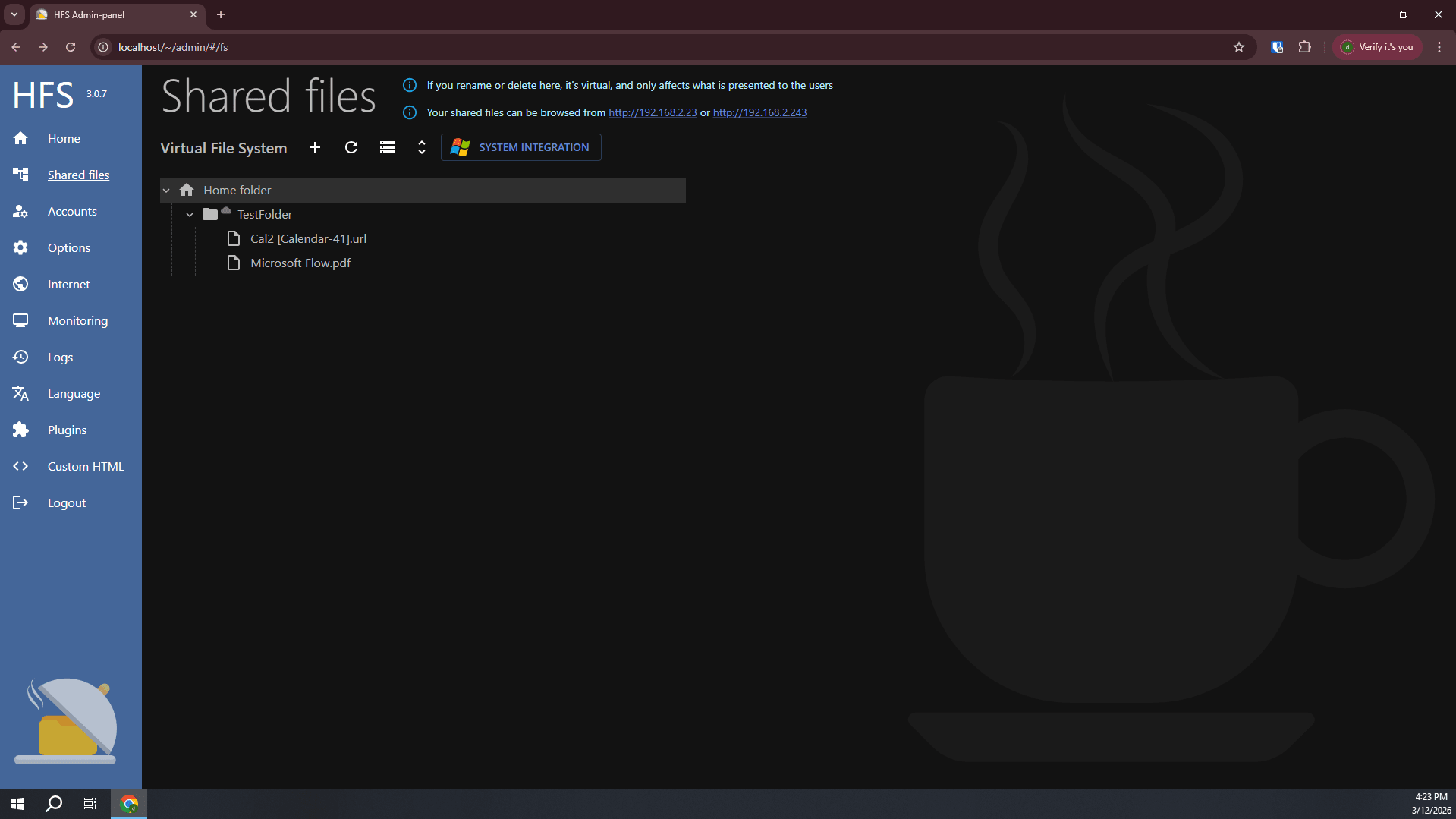
Once launched, the interface displays:
- Server status
- Shared file list
- Network address
- Activity logs
Step 2 — Start the Server
By default, HFS automatically starts an HTTP server.
You will see something like:
Server address:
http://192.168.1.50
This address becomes the file server endpoint.
Anyone with network access can connect through a browser.
Step 3 — Add Files or Folders
To share files:
- Drag and drop files into the HFS window
- Right-click and select Add files
- Add entire folders if needed
Once added, files immediately appear in the shared list.
The server instantly exposes them through the web interface.
Step 4 — Test the Server
Open a browser and navigate to:
http://localhost
or
http://<local-ip>
The browser displays a simple file listing page.
Users can:
- Download files
- Navigate folders
- View file sizes
- Copy download links
Practical Examples for Development Teams
Let’s explore some real scenarios where development teams use HFS.
Example 1 — Sharing Build Artifacts
Build pipelines often produce large files such as:
- Application installers
- ZIP packages
- Compiled binaries
Instead of uploading to cloud storage, teams can simply drop builds into HFS.
Example structure:
builds/
├── app-v1.2.0.zip
├── app-v1.3.0-beta.zip
└── release-notes.txt
Testers can open the provided URL and download the required build.
Example 2 — Hosting Test Datasets
Large applications frequently require shared datasets during testing.
Example:
datasets/
├── sample-users.csv
├── product-data.json
└── analytics-dump.sql
HFS makes distributing these files across QA environments extremely easy.
Example 3 — Internal API Mock Assets
Frontend teams often host mock resources such as:
- JSON responses
- Images
- Test documents
Example:
mock-assets/
├── users.json
├── products.json
└── avatar-images/
Applications can request these assets directly from the HFS HTTP endpoint.
Here is the updated section with a C# example using System.Net.Http and HttpClient.
Code Example: Downloading Files Programmatically
Because HFS exposes files via HTTP, they can easily be downloaded with HttpClient from System.Net.Http.
using System;
using System.IO;
using System.Net.Http;
using System.Threading.Tasks;

class Program
{
    static async Task Main()
    {
        string url = "http://192.168.1.50/builds/app-v1.3.0-beta.zip";
        string outputFile = "app.zip";

        using (HttpClient client = new HttpClient())
        {
            var fileBytes = await client.GetByteArrayAsync(url);
            await File.WriteAllBytesAsync(outputFile, fileBytes);
        }

        Console.WriteLine("Download completed.");
    }
}
This approach works well for automated build or testing pipelines, allowing applications to fetch artifacts directly from an HFS server.
Best Practices
Although HFS is simple to use, following a few best practices helps keep things organized and secure.
Use Local Networks Only
HFS works best for:
- Internal teams
- Development networks
- Test environments
Exposing the server directly to the internet is not recommended without proper security controls.
Organize Files Clearly
A clean structure improves usability.
Example:
downloads/
 ├── builds
 ├── datasets
 ├── test-tools
 └── documentation
Clear organization helps testers quickly find what they need.
Enable Access Controls
HFS supports optional access restrictions, including:
- Password protection
- User permissions
- Upload restrictions
For sensitive files, authentication should be enabled.
Monitor Server Logs
The HFS interface shows logs for:
- Connection attempts
- File downloads
- Server activity
Monitoring these logs helps track file usage during testing cycles.
Common Mistakes to Avoid
Sharing Entire System Drives
Avoid sharing directories like:
C:\
Instead, create a dedicated sharing folder.
Firewall Issues
Windows Firewall may block incoming connections.
If teammates cannot access the server, verify that:
- The port is open
- The application is allowed through the firewall
Real-World Use Cases
Many development teams rely on HFS for quick internal workflows.
QA Distribution Server
QA teams often distribute nightly builds using HFS instead of waiting for cloud uploads.
Temporary Deployment Mirror
During internal testing, HFS can act as a lightweight download mirror.
Rapid Debugging File Exchange
When debugging distributed systems, engineers frequently exchange:
- Log files
- Configuration files
- Test builds
HFS provides an immediate solution.
Conclusion
Setting up a file server does not always require complex infrastructure.
For development teams and testing environments, simplicity and speed often matter more than enterprise-scale systems.
HFS provides a lightweight way to turn any Windows PC into a temporary file server within minutes.
By combining:
- Simple setup
- HTTP-based access
- Drag-and-drop file sharing
- Minimal system requirements
it becomes a highly practical tool for developers and software testers.
With proper organization and basic security practices, HFS can significantly streamline internal file distribution workflows.



Leave a comment